Showing posts with label Nook. Show all posts

Sunday, May 13, 2012

Dropbox Free App for Any Device

Dropbox free app
Free app for your iOS devices via iTunes, Android device via Android Market, Kindle from Amazon App store, Nook from Barnes & Noble, and your computer or mobile device (including Windows, Mac, Linux and Blackberry) from dropbox.com.

What it is: Dropbox is cloud storage. That means your files sit on a server accessible to you from your computer, phone and other devices via the Dropbox software or the web (you can just as easily view and manage your Dropbox files using a web browser by going to www.dropbox.com and signing in). Anyone who signs up gets free 2GB of space, and it's expandable up to 18GB via referrals (500MB per referral). If you create an account using a referral (for example, using this link which would be a referral from me: Get Dropbox) you get an extra 500MB free, as does the referring party. You can also have a paid account, starting with 50GB for $10/month (& a lot more per referral). I think most users find the free account sufficient (you can have more than one account if you need, but you can only link one account at a time to a device or computer; you can access as many accounts as you want if you're using a web browser). Your files are password protected and safe. You can also share specific files or folders with other Dropbox users, or make them public to share on the web (or via, say, Facebook).

Why would you need cloud storage? Here are my main uses for it:
1. Backing up files
2. Archiving files
3. Sharing files
4. Accessing files

I use it to backup up files quickly (in case something happens to my computer), archive files off my phone (e.g., photos if want to remove them from the phone but don't want to delete them and haven't had a chance to copy them to my PC yet), share files with others, and most importantly, make some of my files accessible to myself at any time from anywhere.

One of the beautiful things about Dropbox is its amazing integration into a variety of applications for Android and Apple devices. There are a ton of 3rd party applications that include export to or save to Dropbox options.

There's also a ton of 3rd party programs that integrate with Dropbox and let you CREATE, EDIT, export as PDFs, and EMAIL your Dropbox files. It's like having a portable hard drive that you can access from anywhere without having to actually port it.

How is it relevant to ST? While this app is not involved in any direct Tx, it is where I keep a backup of all my materials; if I do need to print a worksheet, I can access these files from any web browser and print to an attached computer. I don't have to plug in a flash drive or configure printing from my device. As long as there is a computer attached to a printer, and it has a web browser, I can log in to my Dropbox account, print any file, and log out.

In a previous post I described how I carry all my materials using a Nook Tablet, and that I have a copy of all these materials on Dropbox (here's a link to that post: Device: Nook Tablet). It's one of the fastest ways to get my documents into a device like Nook, iPad or a smartphone. Between the device I carry that is loaded with the PDFs I use in treatment, and nearly universal access to my materials via Dropbox, I have ALL of my resources at my fingertips.

Examples: There's not really specific examples of how I use this in Tx because this is about access to all my materials. But here are some examples of where I've benefited from having all my materials on Dropbox:

1. In one of my facilities, the only way to print is via the tech's laptop, and she's the only one with access to it. So when I need something I access Dropbox via my iPhone app, find the files I need and email them to the tech. This creates minimum interruption in the tech's work flow to get my materials printed.

2. I like to have all my materials on my Nook. I had made an updated document for a cogn eval I was using, and saved it to the folder where I keep these resources on my PC--a Dropbox folder. I forgot to hook my tablet up to the PC to transfer the file, and needed it at work the following day. Logged into dropbox in a room that has wifi, and copied to my local files on the Nook. Ready to use in pt's rooms (where there's no access to wifi).

3. I needed some materials printed, and the only computer attached to printer at one of my facilities is really old, slow, and its USB port is broken. But it has a browser, so I logged into Dropbox using the browser, and printed my files. Even if I could have used my flashdrive (which I also carry everywhere; I'm a bit OCD) it would have taken longer. But as such, I don't really need my flashdrive or have to worry about keeping its files synched.

4. I have a folder on Dropbox I share with other SLPs, and we use it as a convenient way to share resources with each other.

Well, you get the picture. No matter what device you use if any, if you have files on Dropbox, you can always access them from any computer or device with internet connection.

Sunday, April 15, 2012

App for iOS and Androids: Let's Name Things (Free!)

Let's Name Things App
Let's Name Things Fun Deck by Super Duper Publications is available for free for iOS devices from iTunes, Android devices from Android Market, Kindle from Amazon App store, and for the Nook from Barnes & Noble.

What it is:  Super Duper Publications are well known for their resources for school-based SLPs. Their materials are meant for use with kiddos, and their illustrations and delivery reflect this. Go to Super Duper Publications for information about this app and others, including a couple of other free ones.

This app is a virtual deck of 52 cards with illustrations that prompt one to name items in a certain category, for example, things that are blue/black/red, things that can fly, things that you find in a zoo, things that are fruit, etc. To start, you "edit the player list"; in schools you may do this with more than one student, but for our purposes we'll only have one "player" at a time so it's not necessary to add a name unless you want to (e.g., if want to keep track of scores across several days or plan to use it with more than one pt).

After you've selected the player, you can select the cards. Most cards are well suited for use with adults, with just a few exceptions which you can deselect. I took out anything that refers to school or teachers (see screen image "select cards" on right). You can also just manually bypass these cards when they come up, but if you only plan to use the app with adults, you may as well just deselect the categories you don't need.

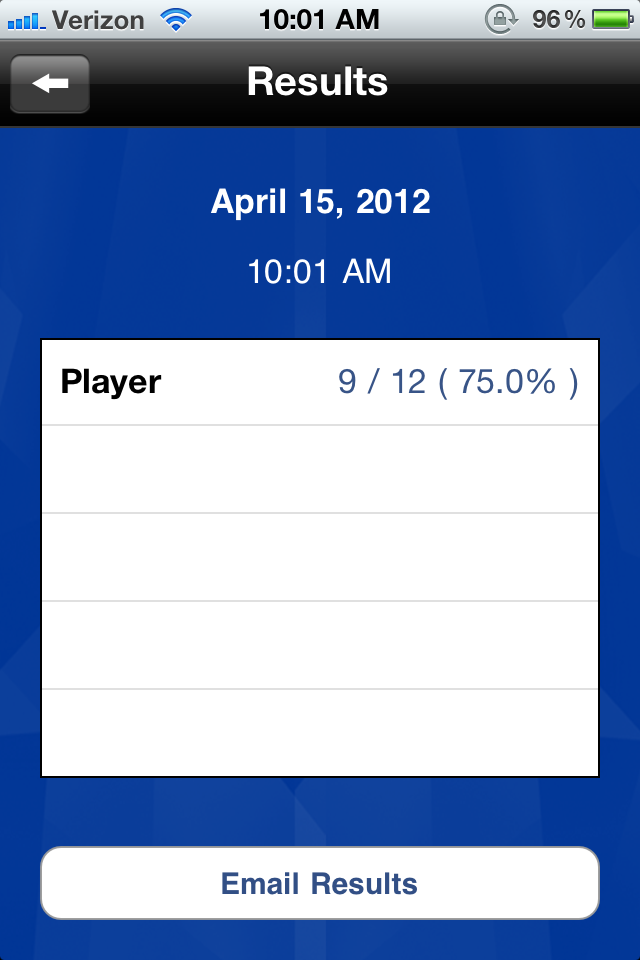
To start the task, you get one card at a time with the prompt "let's name things that...". The prompt is provided with audio, which I would recommend shutting off; just read the prompt yourself to make the task more suitable for adults. The screen for each prompt provides an illustration of the prompt (which, as expected, is on the childish side) and two buttons at the bottom: a red one and a green one, and each keeps count. The app keeps track of this count, and provides you with an overview of results at any point you choose to look at them from the menu (see "results" screen image below).

How we can use it in Tx: As noted above, this resource is targeted at schoolkids. As such, if using this app with an adult pt, I wouldn't bother showing the pt the screen or the the illustration, and instead just provide the verbal prompts myself (also remembering to shut the app's or my device's audio off) and use this application just for ideas of categories to ask about, and to easily count accuracy. The most straightforward use is to have pts name items within categories: I would ask for say, 3 items per category, and keep count using the buttons (green for each item that is appropriate, red for either an inappropriate item or a no-answer). Pretty much any simple reasoning/categorizing/naming task can be initiated with this list of categories, and I provide a couple such suggestions in the examples below.

I also believe that most tasks can be turned into memory tasks: when you are done with a specified number of cards, you can go back to the ones you covered and ask if the pt can remember the 3 (or however many) items they listed for each category.

Goals we can target in Tx with this app: Mostly reasoning and language goals such as organization and categorization (concrete and abstract), naming (divergent and convergent), and simple Y/N questions. And memory, always memory.

Some specific examples:

1. To target delayed memory goals, make this a recall of related items task: Deselect all but 5 cards. Go through all 5 asking the pt to name 3 items for each category, and letting them know that you'll ask later for these items again. When you've gone through all 5 cards (15 words), go back to the first one and see if pt can generate the same ones (from memory, or just from it being the same prompt; it's more functional than memorization of random lists). Use the scoring buttons to keep track of how many items were recalled (or re-generated to the same prompt).

2. Use the category prompts on the cards to generate your own list of items, say 3-5 items, and ask the pt to name the category. E.g., for the card that asks to name "things that are sweet" give the pt a list such as candy, ice cream, cookies, cake and sugar. Keep track of accuracy right on each card by selecting green if the pt got the category (or something close enough to it) and red if the pt wasn't able to name the category.

3. For a reasoning task, use the category suggestions on the cards to generate a list of items that belong to the specified category, and one that doesn't (e.g., for the "things that are sweet" category give candy, sugar, cake, ice cream, hamburger) and ask the pt to pick the "odd one out". Use the app to keep track of accuracy: Keep track of whether the pt was able to ID the odd item, and also whether they were able to explain why it didn't belong.

4. For a pt with simple Y/N question goals, use the prompts in this app is to generate such questions: Go through the categories and ask about the suitability of specific items, e.g., for the prompt "let's name things that are fruits" you can ask "is TV a fruit?" or "is watermelon a fruit?", etc. It's easy to come up with your own Y/N questions without this kind of app, but it's nice to have help generate them quickly AND keep track of accuracy.

It would surely be nice if this app allowed us to add or edit the cards... but even as is, it's not a bad little app to have on your phone (don't need a tablet for this as you won't be sharing the screen image with the pt) to help generate a few simple tasks quickly and keep track of accuracy.

Monday, April 2, 2012

Android app: Word Match

Word Match
Word Match (Free) from Barnes & Noble

What it is: A word association game for the Nook, very similar to the Word to Word app (see blog entry from 3/30/12), but free from the Barnes & Noble store. This version of the word association game contains 3 categories: Art, Food n Beverage, and Health. Like with Word-to-word there are two columns of words that have to be matched into pairs with more advanced levels including more than one possible match for each word, but only one configuration that allows for all the words to be paired. There is a timer that keeps track of how long it took, but there is no time limit on how long one CAN take. Timers are the one thing that can make a good game useless as a Tx task, taking it from fun to frustrating very quickly.

How we can use it in Tx: Since this is the same basic activity as Word-to-Word, I won't bother repeating myself. How to use it in Tx, along with specific examples can be found in my Word-to-Word entry from 3/30/12.

Goals we can target in Tx with this app: Language goals, word-finding, problem solving goals, and STM

Friday, March 30, 2012

iPhone/iPad and Android app: Word to Word

Word to word
Word to Word app (from iTunes, currently free; from Barnes & Noble $0.99; and from Android Market $0.99)

What it is: A word association game. You get a list of words in column A, a list in column B, and you have to find pairs of words related either by being synonyms of each other, antonyms, or they may form a phrase together. The levels get more complex as more than one option from column B is possible for words from column A (or vice-versa), but only one combination will result in every word being paired up. A couple of examples of word pairs: salt-grains, college-coeds, zero-nought and thief-snatcher.

How we can use it in Tx: As you can see from the types of word pairs that have to be found, playing this game involves thinking about words and word use in a variety of ways and from different angles. It's not just about knowing the strict definitions of each word, but also about knowing how to use the word grammatically and pragmatically. In short, it is an easy game to learn, but involves some complex language skills. The game is not timed, which allows for as much time cuing a pt as needed to get the pairs of words figured out. As complexity of the levels is raised, having to negotiate more than one possible pairing for each word can bring in additional language use skills and the need to think up sentences with the game words (as part of the word game rather than a rote worksheet/drill).

Goals we can target in Tx with this app: Language goals, word-finding, a certain amount of problem solving goals (when there's more than one pair choice, how does one decide which to select?), even STM

Some specific examples:

1. For a pt with word-finding goals, take the words in column A and generate antonyms, synonyms and phrases that involve those words. Then look at column B to see if any of the words generated are in that column. Measure accuracy of this task by accuracy of the generated associated-word list (not by whether the generated list included the actual paired word from column B).

2. Higher level language goals can be addressed with the aforementioned additional task of generating sentences with either the target word from column A, its pair from column B, or both.

3. STM: I actually used this game for this with a pt who loves word puzzles. First we solved a puzzle level, then I presented words from that level and asked pt to recall the paired answer. It was more fun than recalling a random list of words or images, and the task provides context for the recalled information.

Saturday, March 17, 2012

Device: Nook Tablet

Barnes & Noble Nook Tablet

Time to look at something other than apps that target a limited selection of goals. Most of the apps I've discussed so far have been for the iPad or iPhone, but what I carry with me every day to work is my Nook. It is a good tablet, at $200 for 8GB and $250 for 16GB much cheaper than the iPad3 (even with the iPad2 dropping to $400 for 16GB), but it's clunky and slower. I use it mostly for its ability to display and notate PDF files and pictures.While it's nice to have additional apps that can target specific goals in a variety of useful and creative ways, I use the Nook for the bread and butter of my clinical practice: all my materials. Let's start with an overview of this device:

Features: The Nook Tablet is Barnes & Noble's fastest tablet. It has a color 7" touch screen that is extremely clear and very high resolution (iPad is closer to 10", and I believe iPad2's resolution was less than Nook Tablet's, but iPad3 wins over all the rest); the Nook Tablet weighs 14.1 oz (iPad is 1.44 lb), and its battery lasts for 11.5 hrs of reading or 9 hrs of video. It has wireless (802.11b/g/n), and free in-store (B&N) tech support (that can come in handy I imagine). There is no camera, but the Nook Tablet has a microphone and expandable memory in the form of a microSD card slot (the other tablet on the market that it most resembles, Amazon's Kindle Fire, does not have a microphone or SDCard capabilities).

OS and apps: The Nook Tablet is an Android device. Barnes & Noble do not give you access to the Android Market; you have to buy all apps and books through their store. Amazon's Kindle Fire has the same story (no access to Android Market, and you have to purchase apps and books through Amazon). So you only have access to the content these manufacturers approve. This is of course the same story with apple's devices, it's just that apple's store IS the equivalent of Android Market because no other manufacturers run iOS; there's plenty to whine about with Apple's often strict monitoring of what apps they'll allow to be sold, but the benefit is that anything released will work on the devices because there is no difference in the hardware. When it comes to Android devices the hardware is very different among them. Some have microphones and cameras, some don't, some have text-to-speech capabilities, some don't (Nook Tablet doesn't), and so on. If you do find a way to purchase apps from Android Market (for example if you root your device, which is the Android equivalent of "jailbreaking" an iDevice) you will not be limited to only those that work with your hardware and may find yourself disappointed in some cases.

Content: Just a quick note on ways you can get your own files onto your Nook Tablet. You can attach it via USB to your computer and just drag and drop files directly into either the internal memory or the SD card (if you have one inserted). You can email them to yourself and set up your email on the Nook Tablet, or you can use cloud storage (like DropBox). I'm a huge fan of DropBox and will certainly discuss it in future posts (if you link through the link I provide here, and create an account, you will get extra free space for being referred by me, as will I for referring... what, it's a win-win).

How I use it in Tx: On my Nook Tablet's SD card I have set up all my materials in PDF form. I have the following main directories: Memory, Puzzles, Problem Solving, Directions, Scanning, Sequences, Language, Voice, Fluency, Evals, Dysphagia, and Resources. Some of these materials I need printed (for example the scanning activities, and some of the word puzzles) but almost everything else I can use right off the device. Through a third party $3 PDF reader (called ezPDF) I can set up a directory structure where I copy (not move) the files I want to use for specific pt's to their own directories, and annotate those files as I use them (keeping track of when I did what, % accuracy, and whatever else I want). I use a stylus to write on the screen, but a finger would do the job as well.

Examples: Most of my materials can be used in one of two ways: I either read stuff off the Nook for the pt, or I let the pt view something on the Nook's screen. I then mark it (with the device facing me, usually) and move on to another page. The Nook lets you zoom in on any parts of the page and view thumbnails. The screenshots here are from my actual notes from doing the tasks with pts.

(1) The screenshot on the left is an example of a word-list task I created myself of homographs and homonyms, where I asked the pt to define each word and then use it in a sentence, then marked accuracy. In the green rectangles I notated the date of when I did each part (I spread it over several sessions so it wouldn't get too tedious). For this task there was no reason for the pt to view the screen at all.

(2) There used to be a screenshot on the right of an example where I actually show my patient something on the Nook; it was a problem-solving in pictures task from Therasimplicity. They have complained, apparently, that showing a screen image of one page of their resources is an infringement of copyright, so I have removed it. All the removed screenshot was meant to illustrate was that there are tasks that require the patients to view the screen; I show each problem-solving picture and ask to identify the problem, and can keep track of accuracy identifying the problem right on the screen. Once the problem is established, I can also rate whether it was solved directly on the screen. Then I sift through the pictures quickly (one picture per page) to count accuracy. I can also keep track of cuing levels right on the screen.

Why this works for me: In my facility I don't have a lot of space to leave my materials, and even if I did, I wouldn't have them available when I'm doing rounds. So I used to carry all my handouts and copies of everything in a bag. Ouch. Now I have everything in the Nook, and if I want to prepare materials for pts in advance I can, and if I want something else I have all my materials on this device and can select what to use at POS. Up goes productivity, down goes weight I have to carry, and I greatly reduce the time I spend at home thinking about it. A nice benefit is also that I have access and record of pretty much all the materials I used with each pt (but without any identifying information, using only initials for pt folders). It did take a few very busy evenings of getting all my materials set up as PDFs. Some I scanned (most scanners will save as PDF files), some I retyped and then printed to PDF (although the Nook will just as easily let you work with Word or Text files), and some I downloaded as PDFs. Now when I create something new (like the homographs/homonyms task pictured above) I just PDF and copy to the Nook instead of printing and making copies for each pt (I also keep a copy of everything on dropbox for safekeeping and easy access for printing if needed). As an aside, making all the PDFs gave me the opportunity to create variations of materials the way I like them (e.g., I had bedside cogn evals from 3 different hospitals which I drew on to make my own that I like best).

Summary: Having all my materials on the nook allows me easy access to all my resources without having to break my back or spend time searching. I can go to any new facility and be just as ready as I am at my home one. I can select resources at point of service, which doesn't only increase productivity but also allows me flexibility if something I thought would work didn't. And the nook is just not attractive enough (like the iPad) where everyone wants to touch it and look at it... I know that doesn't sound like a benefit, but it is.

Wednesday, March 7, 2012

Android app: JABtalk (AAC, free)

JABtalk for Android devices
This program is currently free from JABstone, and is available from Android Market, Amazon App Store, & the Nook Store

What it is:  Originally developed as an AAC device for kids. It is fully customizable, and you can create categories and words with images and sounds for each. If your device supports a microphone you can record the words and categories right on it (Amazon's Kindle doesn't, but BN's nook tablet does and the more expensive Android tablets do as well). If you're using a device without microphone you can import sound files into your library and use them within this program (it'll take longer to prep a communication board that way, but it's doable). When it comes to images, you can take a photo if your device has a camera (Kindle and Nook do not), you can import images on any of the devices, and you can do an image internet search directly from within this program on any of the devices. There's talk of adding sentence building to following releases too.

How we can use it in Tx: I had fun building a default communication board with basic needs for my target population (call button, wheelchair, glasses, dentures, pain scale, yes/no, etc.). I carry this in my Nook as part of my default materials to always have with me. You can also make a language/word-building/problem solving task out of creating a new board with a patient that does not need an AAC device, but can use the practice thinking of common and safety-related objects.

Goals we can target in Tx with this app: Word finding, problem solving, AAC

Some specific examples:

1. Put together a menu for the three daily meals and write a goal for pt to use the device to order their meals (an AAC goal)

2. Have pt locate words within nested categories (e.g., apple would be inside foods & drinks/snacks/fruit) with certain % accuracy (a problem-solving goal)

3. Have a pt (who may not need AAC device) come up with as many suggestions for what to put in a given category (e.g., clothes or snacks) as they can (a word-naming goal)