Showing posts with label question/answer. Show all posts

Saturday, January 10, 2015

Android and iOS app: Constant Therapy

Constant Therapy App
Apps: iPad Constant Therapy app on iTunes (free)
Android Constant Therapy app on Google Play (free)
Website: constanttherapy.com

What it is: A Speech Therapy tool for Cognitive-Communicative rehab. The app includes a large variety of language and cognitive tasks that can be customized to complexity level of your clients. It is free for clinicians, researchers and students; clients have to buy a subscription.

Here is how it works: As a clinician you would have this app on your device (again, for you an account is free). When you have a client with cog-com goals, you would create an account for them on your device (this is all still free). You would choose appropriate tasks customized to your client's diagnosis and severity, functional needs and skills.

The variety of their tasks is extremely satisfying. For language they have tasks for auditory compr, naming, writing, reading and sentence planning; for cognition they have attention, visual processing, mental flexibility, memory, problem solving and executive skill tasks. This list does not do justice to the variety and creativity of these tasks. I'm not sure the exact number but I counted 34 language tasks and 31 cognition tasks. To get a better idea very quickly, I urge you to hop over to this page and just glance at these tasks (when you mouse-over any task, it shows you a screen shot): http://constanttherapy.com/constant-therapy-tasks.

In Tx: The program allows you to select which tasks to use with your client, and at the level of each task you can adjust the complexity. You then get a baseline for each task for the individual client, and the program continues to keep track of progress (as well as usage). There's too many activities that address a large variety of goals to go into detail here. What I can say is that the activities I've seen and tried are created almost exactly how I would have conceptualized them, and I found it was very intuitive how to explain the clinical justification for spending time on these to patients and their families. Also, CT's website discusses Evidence Based Practice (EBP) implementation.

Outside Tx: You can select the tasks you want as "homework" for your client. This is where their own subscription becomes beneficial: The clients that can continue to complete these tasks outside of the therapy session can purchase a subscription (http://constanttherapy.com/pricing). They should do it using the account you create for them in session, so that the homework you assign can show up in their account, and their progress with tasks in sessions and on their own can be tracked (from within the account of the clinician that originally created their login). This extends your therapy outside the session: you, the SLP, are making clinically-informed choices re which tasks are most appropriate and beneficial, and are able to modify your decision based on progress feedback. Very few tools allow this kind of flexibility for clinicians to address patient needs beyond the therapy session.

My experience: I've used it only with adults for both cognitive and language intervention. I found it extremely age-appropriate, interesting and motivating. My clients seemed to enjoy the tasks, and I can't say enough about the ability to track progress in such an individualized (per client, per goal, per task) manner. A few outpatients have purchased a subscription and they (and their spouses) report good motivation to work on tasks at home.

Bottom line: I can absolutely recommend this program/service to both clinicians and clients. For the clinician, you will find this to be one of your most used apps on your tablet. For the client, based on the prices in 2014-2015 the feedback I've received is that it is well worth it.

Sunday, July 27, 2014

iOS App: ICOON Global Picture Dictionary

ICOON App
ICOON App on iTunes ($0.99, sometimes Free)

What it is: Aimed at travelers ICOON provides a pictorial phrase book for the purpose of cross-language communication. It is simple to use and includes 12 categories that range from the basic/every-day (Hygiene, Health, Clothing, Food) to the travel-related (Measurements, World and Accommodation).

Screen Shot 1 shows a view of the categories, which is on the first screen of this app. Screen Shot 2 shows the view from inside a category ("Hygiene"), and Screen Shot 3 a specific item (toothbrush and toothpaste from the "Hygiene" category).
Screen Shot 1

How we can use it in Tx: When it comes to language goals,
pictures are always useful. Pictures divided into relevant categories are even more useful as one can make decisions about complexity level of vocabulary tasks based on context.

For word-finding goals, vocabulary that is relevant to the immediate environment of your client or is basic for their ADLs (e.g., food, hygiene, clothing) would be easiest. Emotions and Leisure a little more difficult, and Travel and World categories likely most
complex.

Language goals can be addressed in a variety of ways including confrontational naming, categorizing (top-down starting with the category and thinking of items then going over them, or bottom-up starting with items and determining categories). Pictures can replace word lists for motor speech and intelligibility practice. The picture lists easily lend themselves to various Q/A tasks, from simplest y/n to more open ended.

Screen Shot 2
The app could also be used to assess appropriateness of AAC using pictures. Does your client recognize the pictures? Are they able to read the category names? Their AAC needs are not likely to be fully met with this app (unless there is no symbolic dysfunction, and your client is only limited d/t voice issues) but you will be able to assess needs and abilities to determine what AAC app WOULD work if any.

Goals we can target in Tx with this app: Language goals
including word-finding, categorizing, question/answer and descriptions, speech goals that address dysarthria, apraxia and anything that affects intelligibility, and AAC (specifically to help assess needs and appropriateness).

Some specific examples:

Screen Shot 3
1. I recently had a client who has an existing Dx of severe expressive aphasia as well as a Dx for severe dementia. I have been working with her on pictures, and she is now able to generate around 30% (on a good day) of simple vocab from pictures. I show her a picture and ask what it is. I try to keep the pictures for each session from within the same category to help with context. If she is not able to generate the word, I give her a choice ("is this a toothbrush or a comb?"). She is able to reply with >90% accuracy. When we started she had <50% acc just repeating words. Her ability to express her needs has increased, and I have been able to educate staff re strategies to communicate with her (to ask her y/n questions as she demonstrates fairly high accuracy answering these).

2. S/P stroke client with expression limited to yes and no and conflicting reports of accuracy re same. These every day vocab pictures were useful in determining the severity of his symbolic dysfunction and helped determine that he is appropriate for an AAC device, and is able to navigate across categories to find his needs.

3. Used this app for a short task in a session with a high functioning language client presenting with mild word-finding issues at conversation level. This app was used to provide stim to jump-start conversations on a variety of topics.

Saturday, September 14, 2013

Android, Windows and iOS app: 4 Pics 1 Word

4 Pics 1 Word App
4 Pics 1 Word for Windows RT, for Android devices on Google Play, and for iOS devices from iTunes (all are free at this time). Also available for Nook from Barnes and Noble, and for Kindle from Amazon (these cost $0.99, and possibly are from a different developer).

What it is: A simple puzzle that presents 4 pictures that have one word in common, and you have to guess what that word is. See screen shot below where the target word is "sweet".

The gameplay is simple. Just start it and it presents 4 pictures on the screen (beautiful and high resolution), 12 letters, and blanks for each letter of the target word. Figure out what word the 4 pictures have in common and fill in the answer. You can turn off the sound if you want (although it's not annoying, just sound effects for when you select letters) and you can turn off the notifications re "buying" hints and such. As you progress through the puzzle, you win "coins" with each correct answer, and then you can purchase hints with these coins. Players can also buy these "coins" via in-app purchase.

How we can use it in Tx: Solve the puzzles with your client, providing cues as needed. You can talk about each picture of the 4 presented per puzzle, ask questions and elicit replies. In many cases the target word has more than one meaning (e.g., "sign" where it could be a noun or a verb) which provides context for some great language intervention. Solving the puzzles is great, but the path to solving each puzzles provides context for some useful interaction.

The main problem with this app is that you can't go back to puzzles you've solved (unless you remove the app and reinstall it, presumably). The puzzles do get progressively more difficult but very gradually and not by much. It's not optimal but for now you can use it until it's too difficult for your population, then reinstall and start from the beginning. And hopefully down the road, there will be a setting to go back to solved puzzles/restart the progress. On the other hand, it's free so expectations for greater customization are rather low.

Goals we can target in Tx with this app: Language goals that involve word-finding and naming are addressed rather straightforwardly, but there's also good use of repetition and Q/A that can be useful in addressing apraxia and dysarthria goals. Describing and discussing the 4 pictures presents a great opportunity to practice verbal expression. Reasoning is addressed with solving the puzzles, and focus/attention can be addressed as well (presenting 4 different pictures to solve for one word would require some cuing for focus for quite a few of my current clients). A client with lateral neglect may benefit from having to give equal attention to all 4 pictures to solve the puzzle. And you can always address memory goals with recall of pictures.

Some specific examples: Just a couple of examples of the less straightforward uses of the puzzle.

1. Memory goals: after discussing each of the 4 pictures and, hopefully, solving the puzzle, turn off the device and recall the 4 images. Start by cuing with the common word, then provide additional cues as needed.

2. Homographs/homonyms: address the various meanings of the target words as they come up in the puzzle. Since it will be as part of the puzzle-solving activity, and since the differing meanings of the words are in most cases what make the puzzle (e.g., in the screen shot above the actual taste of something vs. a synonym for "cute"), you'll have a great opportunity for this type of activity in  context (rather than a rote list of words as part of a structured task).

Sunday, May 26, 2013

iPad app: Move & Match

Move & Match App
Move & Match app on iTunes (US $1.99)

What it is: Listed in the "Education" category, this app lets you create elements on a background and move them around freely. Elements can only be rectangular, but they can hold photos/pictures or words, they can be custom sized (as can the text within), they have a variety of background colors, and they can be cloned. If this description doesn't do much for your imagination, look at the screen images of examples I threw together really quickly (or look at the developers' examples of uses in iTunes via the link above).

Within the app you make a project file for each exercise that you create, and hence can build yourself a nice database of go-to tasks for a variety of goals. The developers also have a selection of pre-created projects that you can download off Dropbox directly into the app and use (this is accessible via the "i" information screen within the app).

Screen Image 1: Closed paragraph
How we can use it in Tx: This app allows easy creation of a host of closed-exercises that require either filling in the blank from provided choices (like in Screen Image 1), multiple choice answers, any kind of matching, or word/sentence building. For cogn goals you can create sequencing and sorting tasks. If you take the time you can build some useful visuospatial/executive function tasks such as completing a pattern or an analogy (you'd need to create some images externally--via an image editor and then get the pictures on your iPad first). I discuss some of these suggestions in the "specific examples" section below. But really, the possibilities are endless... just about anything you do with worksheets that involves multiple choice can be replicated and expanded on using this app!

Goals we can target in Tx with this app: Language and word finding goals through a variety of fill-in-blank, closed paragraph, matching, word/sentence building or multiple choice tasks. Higher level cogn goals like planning, sequencing and reasoning. Sequencing and sorting either words, numbers or images (e.g., photographs of various stages of some activity, just like photo sorting cards but all in one screen). You can make simple math problems with multiple choice answers (there's actually a few of these ready-made and freely available from the developers already). You can create a background monthly calendar with fill-in elements to work on orientation and recall.

Screen Image 2: Sequencing photos and/or text
Some specific examples:

1. Sequencing/sorting: As I mention above, you can take photos of various stages of an activity (e.g., doing laundry, heating up a pizza, making ice cubes, etc.). You can import pictures from your album which means you can use your camera or do image searches online, save them to album, and use them from album. Once you have enough steps to sequence you just let the client move them around into the correct order. You can also make text elements to sort or sequence (e.g., months, numbers, days of the week, or steps of an activity listed in text instead of as photos). See Screen Image 2 of a quick and dirty example where I use photos I took for another app I reviewed recently, but also added text that can be moved and reordered.

2. For language goals you can create just about any matching exercise you can come up with. Antonyms, synonyms, definitions, pictures of items and their names... etc.

Screen Image 3: Categorizing text and/or images
3. Categorizing task: create a few headings (e.g., furniture, food, countries, etc.) and a bunch of words or images that fit in each of these and have your client drag the words around to place them under the appropriate category name. See Screen Image 3 for a quick and dirty example I made for this task. The images I just downloaded after a very quick google search, and, you can see at the bottom of the screen the elements waiting to be sorted.

4. Scanning activity: create a whole bunch of elements (icons or words or letters or numbers or even just squares with colors) and direct your client to find (and, for example, move to a specific side of the screen) all the elements that fit some set of criteria (e.g., all the blue squares, or all the blue squares with "r").

Screen Image 4: Calendar
5. Orientation/recall: use an image of a calendar (in my example in Screen Image 4 I used a weekly view of the iPad Calendar that was blank) and add some elements that can be moved around (visitors, routines like therapy and meals, etc.). Work on today, or recall yesterday. I like the weekly view for this because it has all this room to hold the collection of elements while the client decides if to use them and where to put them in the daily list.

There's just too many things you can do with this app to list them all... Since these projects can be saved and shared, maybe if there's enough SLPs using this app we can have our own section on the developer's Dropbox down the road... or find some other way to share amongst ourselves. I know I plan to create a whole load of projects in this app, and although some may take great time and effort, I know I'll use them a lot.

Sunday, July 29, 2012

iPad/iPhone app: Writers App

Writers App
"Writers App" app in iTunes (usually $0.99, sometimes free)

What it is: An application to help authors plan a story/novel. A place to enter notes about characters, places, the plot, individual chapters, etc., and to keep it in an organized database. It is very intuitive to use, and does not require each field to have content.

You start out by adding a story (you can work on several at once, each with its own entry). For each story you then add relevant details: a title, information about the story (synopsis, premise, plot), chapters, characters, places, and there's room for further notes. You can add as many characters (or chapters, or places) as you want. For each character there are fields for name, general info (role, occupation), attributes such as strengths and weaknesses, habits, biography, hobbies, personality, and physical characteristics (hair, age, eyes, etc.), and of course further notes. Each entry for "Places" also expands to the name of place, about it, environment, description, characteristics and further notes.

So as you can see, it's structured but has a lot of fields and room for freestyle notes. There's no customization for the fields (I'm sure future updates will include this; it is always something users request once they start using an app like this). There's also no way to include pictures, and I'm not sure there ever will be, but if needed that can be added via export: Currently there's only one way to export, which is to email yourself the list: whatever level you export from, will include the info on that level and below it. So if you export from one character's view, you will only get the info for that character; if you export from the main story level, you will get everything you have entered for the entire story (all the characters, places, etc.). The emailed text can be copied and pasted into a simple document, and if needed pictures can be added. Format nicely and print.

How we can use it in Tx: This is a great tool to keep track of characters and plot twists for an author in the planning stages of their great novel... And for us, it's a great tool to help pts slowly put together their own life story. While there are a few fields in this application that won't play a role (and may confuse a pt if they are doing this independently) I think this is a great tool to use *with* the SLP to work on reminiscing, map out one's family members, one's life story, and even better--all of these. Since the information is so well fragmented into characters, places, story... we can concentrate on one section at a time (for several sessions, as needed). And the best part is that the resulting information from these sessions can be printed for the patient to keep.

This may not be the perfect app for doing this, but it's a nice start. And it lets you keep a list of what the pt has already contributed, go over it in future sessions, and proceed from there. And of course this can also be achieved with just a pad and paper, or any number of note-taking apps (some that also allow pictures and sound attachments). But I like the organization of this one that makes this open-ended task into a structured exercise, easier to follow through with and to pick up where you left off in future sessions.

Goals we can target with this app: Memory goals mostly, and since it uses a pt's personal information about their life and family, one hopes there's increased motivation to participate in the task. Sequencing and categorization, attention and question/answer goals are addressed almost inherently as part of the task, and there could be added focus on these goals as needed. For example, a pt could be asked to recall something from grade school, something from high school, something from college (if they attended) or military service (or whatever else they did after HS) and work on sequencing these stories into chapters (which came first in life, which later). Orientation is also addressed as part of discussing previous events, younger age, different locations (that was then, this is now).

Some specific examples:

1. Reminiscing: for a pt that isn't able to remember a lot about their own life, you can create a chapter for certain decades (20's, 30's, 40's, 50's, 60's...) and think of famous characters from each era (Marilyn Monroe, Shirley Temple, Churchill, Charlie Chaplin, etc.). and famous events... If you don't remember much from your grade school history classes you can do some minimal research online and find enough famous events and people for each decade within minutes, surely. Or you can do the research together with your pt, and let them participate and recall some of these milestones. I had a pt who had a really hard time remembering anything about his own life, with LTM and STM goals. I brought in a reminiscing task with pictures of famous events or people from various decades, and we went through them. My pt said he won't remember any of it when we started, but as we went through my list he did in fact recall quite a few of the events and people, and had a few bits of information to contribute about them, some even from personal experiences. It was a very successful session that left both of us smiling.

2. External memory cues: work on a pt's family tree using this app by adding each family member as their own character. Go over each character on multiple occasions trying to get pt to recall additional attributes; maybe add descriptions based on photos in the pt's room... You can get additional info from visiting family members if possible. Just have fun with it. And this is certainly something you will want to export, format, and print for the pt when you are done.

3. Write a pt's life story, especially if it's a pt who has lived in several places. Write a chapter for each time in their life (as I mention above, one for grade school, one for high school, etc.) and again, let them fill in bits and pieces over several sessions (give the specifics recalled previously and ask for more detailed info, e.g. "so last time we talked about your time in the army and you mentioned you were stationed in Italy. How long were you there?").

Friday, July 20, 2012

iPhone app: Oh, My Word! 2

Oh My Word! 2 App
OhMyWord2 app in iTunes (free)

What it is: Dubbed a prettier and more interesting version of hangman, this is a game where you guess a common 5 letter word based on being given two words that would flank it if listed in alphabetical order. You enter a 5 letter word as your guess, and if it's not the target word, your guess replaces one of the flanking clue words, getting you closer to the target. For example in the screen image below, the target word if listed alphabetically would be between GYROS and OFFER. So the hidden word must start with G, H, I, J, K, L, M, N or O. Put in a few guesses of words starting with these letters, and you narrow it down to a word that in alphabetic order would be between LIMPS and LINKS and must therefore start with LI- (see screen image 2, below).

Screen Image 1
There are several levels at which this game can be played, including a relaxed (called "classic") un-timed easy level where you are given 50 guesses, and the goal is to see how many words you can find within that number of guesses. There's also hints where you can request to be shown one of the letters in the hidden word. After playing this game several times (ok, a whole lot of times... this is a fun game!) I can attest to the fact that the target words indeed are common.

How we can use it in Tx: Access to an un-timed level with truly common words makes this a useful Tx tool. Definitions do not enter into the game. It is more about word recognition and letter sequencing in alphabetic order. Word-finding in the traditional sense normally involves coming up with the word for a specific item, and as such the definition is an integral part. Coming up with words that start with a specific letter (or sequence of letters) is a skill that combines language and reasoning, but still relies on word familiarity and ability to access stored words. For my acute pts with Aphasia I developed a mini word recognition game: I would put two cards with consonants in front of a pt, for example "p" and "g" and then give them cards with all 5 vowels, and ask them to choose the vowels that would form a real word if placed between the the two consonants; so in this example 'e' (peg), 'i' (pig), and 'u' (pug). And I'd ask the pt to also tell me what each word means (often they would choose a vowel that does not make a word, and realize so when they couldn't come up with a definition). It was a multi-step simple word finding activity that first required to recognize the word, then access its meaning. In the same manner for this app, since the words are common, supplemental tasks involving word meanings can be incorporated for those pts who need it.
Screen Image 2

Goals we can target with this app: Word-finding and naming, language, reasoning, sequencing (since alphabetical order plays a large role in this game), question/answer goals (simple y/n where you ask the pt if this letter comes before that one, or if this word precedes or follows the other in the dictionary). For verbal expression deficits reading the words aloud could also be added, incorporating apraxia, dysarthria, voice, intelligibility goals as part of a fun activity.

Some specific examples:

1. For a pt working on using intelligibility strategies at word-level, this game can provide a nice set of short words to practice strategies on. Many of the words have consonant clusters, which provide great practice for exaggerating movements. And since this is a fun thinking activity, it is easier to gauge level of cuing needed to use the intelligibility strategies at word-level (since usually, a word-level task involves a rote list of words and the drill-like manner of the exercise often reminds the pt to use strategies; not that it's a bad thing to have this built-in reminder--in fact it is a great way to get the strategies practiced--but it's nice to have a halfway point where the exercise is still word-level, but the focus is elsewhere and strategy use is less in the forefront of one's mind.

2. For a pt with sequencing goals, this game is a great practice involving alphabetic order. If coming up with words is too difficult for the pt, the ST can focus only on the alphabetic sequence of letters and make word suggestions for the pt to respond. If the two flanking words are GHOST and ICONS, for example, ask the pt what letters come between G and I. If that's too hard, make it a Y/N question: Does K come between G and I? Does H? Then ascertain which letters the target word can start with (in this case G, H, I). Now say you've entered HORSE, and now the flanking words are HORSE and ICONS. What letters can our word start with? (H or I). If it's an H word, what 2nd letter can it be? (O-Z) If it's an I word, what 2nd letter can it be? (A-C). Anyway, you get the picture, just focus on sequences and then suggest the words to guess with.

3. For a pt with higher level language goals, just play the game. Add/reduce cuing as needed to come up with word guesses, and if relevant to pt's goals, ask for definitions of all suggested words.

Sunday, April 15, 2012

App for iOS and Androids: Let's Name Things (Free!)

Let's Name Things App
Let's Name Things Fun Deck by Super Duper Publications is available for free for iOS devices from iTunes, Android devices from Android Market, Kindle from Amazon App store, and for the Nook from Barnes & Noble.

What it is:  Super Duper Publications are well known for their resources for school-based SLPs. Their materials are meant for use with kiddos, and their illustrations and delivery reflect this. Go to Super Duper Publications for information about this app and others, including a couple of other free ones.

This app is a virtual deck of 52 cards with illustrations that prompt one to name items in a certain category, for example, things that are blue/black/red, things that can fly, things that you find in a zoo, things that are fruit, etc. To start, you "edit the player list"; in schools you may do this with more than one student, but for our purposes we'll only have one "player" at a time so it's not necessary to add a name unless you want to (e.g., if want to keep track of scores across several days or plan to use it with more than one pt).

After you've selected the player, you can select the cards. Most cards are well suited for use with adults, with just a few exceptions which you can deselect. I took out anything that refers to school or teachers (see screen image "select cards" on right). You can also just manually bypass these cards when they come up, but if you only plan to use the app with adults, you may as well just deselect the categories you don't need.

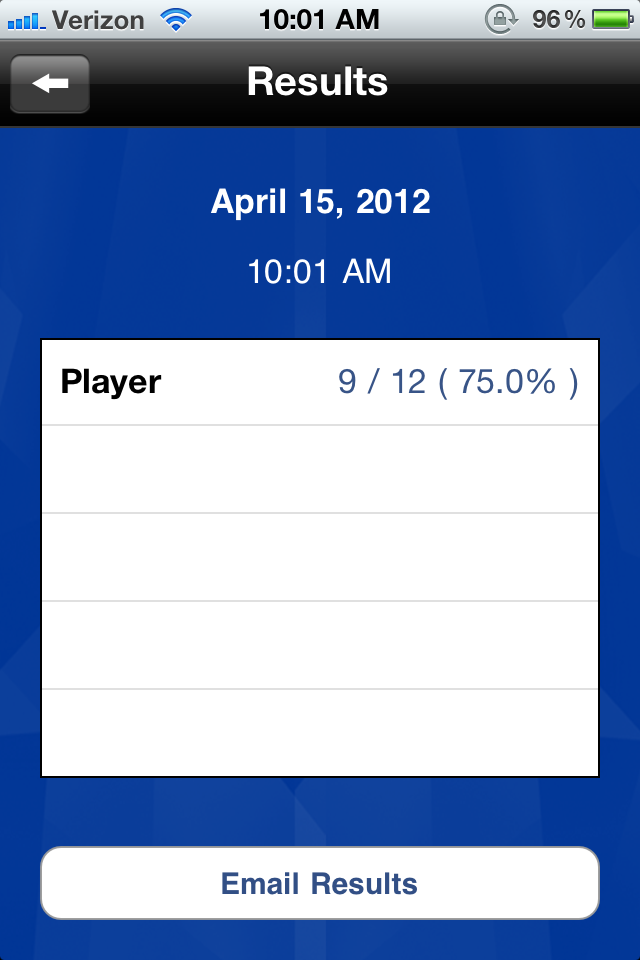
To start the task, you get one card at a time with the prompt "let's name things that...". The prompt is provided with audio, which I would recommend shutting off; just read the prompt yourself to make the task more suitable for adults. The screen for each prompt provides an illustration of the prompt (which, as expected, is on the childish side) and two buttons at the bottom: a red one and a green one, and each keeps count. The app keeps track of this count, and provides you with an overview of results at any point you choose to look at them from the menu (see "results" screen image below).

How we can use it in Tx: As noted above, this resource is targeted at schoolkids. As such, if using this app with an adult pt, I wouldn't bother showing the pt the screen or the the illustration, and instead just provide the verbal prompts myself (also remembering to shut the app's or my device's audio off) and use this application just for ideas of categories to ask about, and to easily count accuracy. The most straightforward use is to have pts name items within categories: I would ask for say, 3 items per category, and keep count using the buttons (green for each item that is appropriate, red for either an inappropriate item or a no-answer). Pretty much any simple reasoning/categorizing/naming task can be initiated with this list of categories, and I provide a couple such suggestions in the examples below.

I also believe that most tasks can be turned into memory tasks: when you are done with a specified number of cards, you can go back to the ones you covered and ask if the pt can remember the 3 (or however many) items they listed for each category.

Goals we can target in Tx with this app: Mostly reasoning and language goals such as organization and categorization (concrete and abstract), naming (divergent and convergent), and simple Y/N questions. And memory, always memory.

Some specific examples:

1. To target delayed memory goals, make this a recall of related items task: Deselect all but 5 cards. Go through all 5 asking the pt to name 3 items for each category, and letting them know that you'll ask later for these items again. When you've gone through all 5 cards (15 words), go back to the first one and see if pt can generate the same ones (from memory, or just from it being the same prompt; it's more functional than memorization of random lists). Use the scoring buttons to keep track of how many items were recalled (or re-generated to the same prompt).

2. Use the category prompts on the cards to generate your own list of items, say 3-5 items, and ask the pt to name the category. E.g., for the card that asks to name "things that are sweet" give the pt a list such as candy, ice cream, cookies, cake and sugar. Keep track of accuracy right on each card by selecting green if the pt got the category (or something close enough to it) and red if the pt wasn't able to name the category.

3. For a reasoning task, use the category suggestions on the cards to generate a list of items that belong to the specified category, and one that doesn't (e.g., for the "things that are sweet" category give candy, sugar, cake, ice cream, hamburger) and ask the pt to pick the "odd one out". Use the app to keep track of accuracy: Keep track of whether the pt was able to ID the odd item, and also whether they were able to explain why it didn't belong.

4. For a pt with simple Y/N question goals, use the prompts in this app is to generate such questions: Go through the categories and ask about the suitability of specific items, e.g., for the prompt "let's name things that are fruits" you can ask "is TV a fruit?" or "is watermelon a fruit?", etc. It's easy to come up with your own Y/N questions without this kind of app, but it's nice to have help generate them quickly AND keep track of accuracy.

It would surely be nice if this app allowed us to add or edit the cards... but even as is, it's not a bad little app to have on your phone (don't need a tablet for this as you won't be sharing the screen image with the pt) to help generate a few simple tasks quickly and keep track of accuracy.

Saturday, March 24, 2012

iPad app: More Cookies!

More Cookies App
More cookies (free for a short time, usually $0.99) from iTunes

What it is: Bake virtual cookies using a recipe or "pre-made" dough; add ingredients, mix, cut into shapes, bake and decorate. If you want you can save your creations to your album, email them, or "eat" them. With the recipe option you choose the type of cookie you want to make, and then drag ingredients to a mixing bowl (with extra steps like cracking the eggs) and then swirl your finger to mix the dough. With "pre-made" you also get to choose the type of cookie, and with some you have to roll out the dough and cut it in to shapes, and with others just drag pieces of cookie dough to the pan. With both options you have to lay the cookies in the pan (if you're not careful how you lay them out, you may not fit them all) and then bake them, followed by decorating (you have a ton of options for icing, sprinkles, candy, fruit/nuts, and weird stuff).

Here is my creation for the purpose of this blog: it was a pre-made version of sugar cookies, cut into bunny shape, with yellow frosting, purple sugar sprinkles, and gummy brains!! What, I'd totally eat it!!

How we can use it in Tx: The most obvious way to use this is as a direction-following task. The app provides some of the directions (add ingredients, mix, roll out dough, cut into shapes, place on pan, bake, decorate...) and we can provide additional ones that can also be more open-ended (frost with any of the choices, add some sprinkles and a couple of candies, or more specific like "add two nuts and 3 candies"). Some sequencing can be implemented in the decorating part.

Reasoning can also be involved in requesting a batch of cookies appropriate for, say, a holiday that occurs at the end of October. Access to the "weird stuff" for decorating (things like bacon, jalapenos and fried egg) opens up possibilities for question/answer tasks, decision making, and explaining why to use or not use a particular ingredient.

I think I can even get some memory work out of this app: the "from scratch" option shows recipes for the cookies. One needn't remember the amount needed of each ingredient to play, but a pt could be asked to look over the recipe, and for example remember how much vanilla or how many eggs were needed; then when the cookies are done and decorated delayed recall could be assessed.

Even scanning and sorting can be addressed by decorating a cookie with a lot of different things and one weird one, and asking the pt to search for the it or count how many marshmallows there are, or something similar. Decorating the cookies and laying them out in a pan to bake can address visual field neglect deficits.

For an extra bit of fun I would save pictures of the virtual cookies and print them for the pt, especially if the cookies are "prepared" for an upcoming holiday.

Goals we can target in Tx with this app: Direction following, sequencing, memory, question/answer, reasoning/problem-solving, scanning.

Some specific examples:

I give some ideas in the "How we can use it" section above, but here are some more specific examples:

1. For sequencing and/or scanning goals: Create a cookie with 1 of one topping (say, 1 marshmallow), 2 of another (say gummy bears), 3 of another (chocolate chip), 4 of another and 5 of yet another. Ask pt to list the toppings in order of how many there is of each from lowest to highest.

2. For memory (immediate, short term, delayed or spaced retrieval) goals: Start with the making cookies from scratch option, and while scanning the recipe tell the pt to remember how many total ingredients were needed (or how many ingredients that add sweetness to the recipe there are). Tell the pt that after the cookies are made and decorated you will ask for this information (or, if you're working on spaced retrieval, ask for this information as soon as you move to the next screen, then with each next step and again at the end).

3. For direction-following goals: In the "from scratch" option where ingredients are added to the bowl one at a time, ask the pt to add all the dry ingredients first and then all the wet ones.

4. For problem-solving/reasoning goals: Give a scenario that involves an occasion (either a specific holiday, or the time of year for one so the pt has to figure that part out first, or another type of occasion) and ask the pt to decorate cookies for that occasion, choosing the most appropriate shapes and colors.

5. For visual field neglect goals: Work on spacing the cookies on the pan before baking, making sure the whole pan is used (you can bake up to 12 cookies at a time, so ask the pt to fit all 12 in... this would require extra care). Draw attention to the neglected side of the cookie, and make sure it is decorated the same as the strong side. Or request specific differences between the two sides to require attention to both (e.g., make a gingerbread man and frost the left side of his body one color and the right another).